Data Grid for Core
Overview
Inorigo’s® Data Grid for Core addon allows users to edit and create multiple entities in a spreadsheet-like matrix without using or creating an application. It offers the same base functionalities as the Data Grid for Applications but uses queries to retrieve datasets instead of recipes.
Data Grid for Core supports a set of operations intended for efficient, low‑overhead data editing.
When to Use Data Grid for Core
| Scenario | Recommended Tool |
|---|---|
| Edit data directly without building an application | Data Grid for Core |
| Fast, iterative updates to a single dataset | Data Grid for Core |
| Bulk editing with a streamlined query-based interface | Data Grid for Core |
| Standardised, repeatable workflow for a specific dataset | Data Grid for Applications |
| Hierarchical or deeply nested data structures | Data Grid for Applications |
| Working across multiple data types simultaneously | Data Grid for Applications |
Query-Based Data Retrieval
Data Grid for Core uses an explicit query model to define the scope and specificity of the data you work with. Queries are built in the Query Editor using one or more criteria connected by AND or OR logic. As you build the query, the editor summarizes it into a single readable string at the top of the page.
Data Type
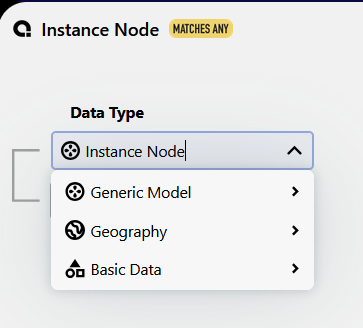
Every query starts with selecting a Data Type, which determines which entities the query targets. The default is Association, but any available type can be selected.
Match Condition
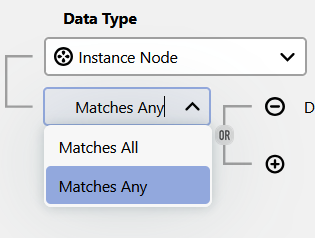
• Matches All (AND) - returns results that satisfy every condition; narrows the dataset
• Matches Any (OR) - returns results that satisfy at least one condition; broadens the dataset
Criterion Types
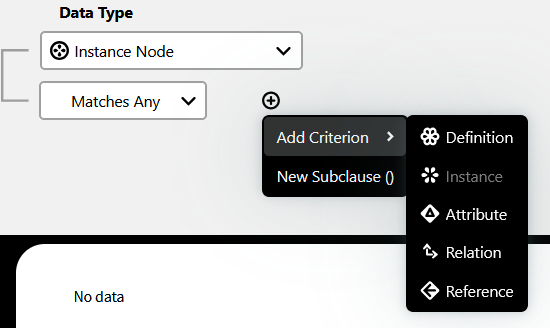
The following criterion types are available, depending on the selected data type:
• Attribute - filter on specific attribute values; available attributes are scoped to the definitions in the query
• Definition - filter by definition; defaults to Kind Of operator for broad matching, or Equals for precision
• Instance - filter on a specific instance
• Reference - filter by reference; available references are scoped to the definitions in the query
• Relation - filter by relation; supports a Deep setting that traverses recursive hierarchies (e.g. parent-of-parent, child-of-child)
Subclauses
To find out more about how to use subclauses click here
A subclause is a nested query used within a criterion, useful when a condition must depend on the result of another query rather than a static value. Subclauses have their own match condition and criteria, and can be collapsed into a summary string to keep the editor readable.
Operators
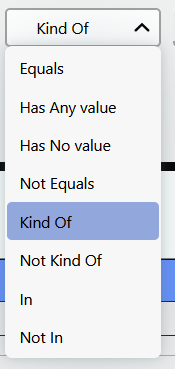
Available operators per criterion include: Equals, Not Equals, Has Any Value, Has No Value, Kind Of, Not Kind Of, In, Not In. The operator defaults to Kind Of; switching to Equals is recommended when the definition has no subclasses.
Grid Actions
• Run : executes the query and populates the grid. If there are unsaved changes, a dialog shows how many will be lost.
• Add Row : adds a new entity row directly in the grid
• Save : commits all changes
• Filter : filters visible rows in real time based on typed input
• Reset : discards all unsaved changes

In-Grid Indicators
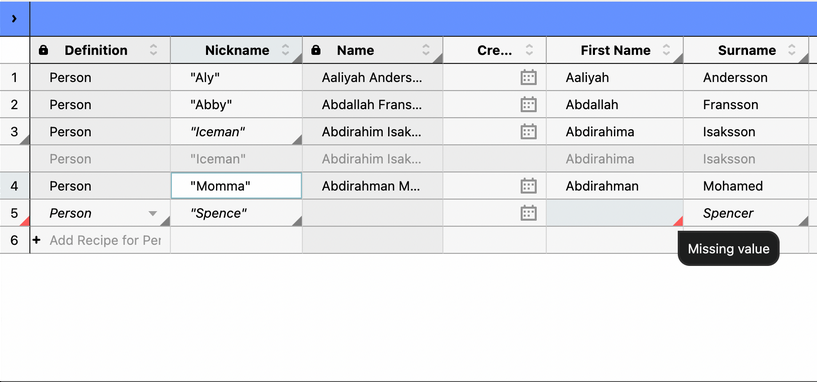
• Unsaved values - grey triangle in the lower-right corner of the cell, with a grey marker in the row number column
• Errors - red triangle in the lower-right corner, with a grey row marker; hover to see a tooltip with details. All errors must be resolved before saving.
Excel Integration
Data Grid for Core supports two-way data exchange with Excel:
Copying from Data Grid to Excel
• Ctrl + C - copy selected cells, then paste into Excel
• Ctrl + Shift + C - copy selected cells including column headers
Pasting from Excel into Data Grid
Copy data from Excel and paste directly into the grid. Invalid values are flagged in red and must be corrected before saving. A specific cell must be selected before pasting.
Updating Existing Entities from Excel (Paste Match)
Right-click and select Paste Match to update existing entities using Excel data. Two matching options are available:
• Paste Match – Values - matches based on values in a specific column
• Paste Match – Headers - matches values into the correct column by column header
These options can be combined.
Keyboard Shortcuts
Ctrl + Shift + A Select all rows
11:50 AM
| Shortcut | Action |
|---|---|
| Ctrl + C | Copy selected cells |
| Ctrl + Shift + C | Copy selected cells including column headers |
| Ctrl + V | Paste into grid or Excel |
| Ctrl + D | Fill the same value in all selected cells within a column |
| Ctrl + Shift + D | Increment values downward by 1 in the selected column |
| Ctrl + Shift + Alt + D | Increment values downward by 1 across all selected columns |
| Ctrl + Shift + A | Select all rows |
!--\\[if gte mso 9]>
Limitations in Version 23.6.2
The following capabilities available in Data Grid for Applications are not supported in this version. These are a direct consequence of the query-based model, which restricts retrieval to one data type at a time:
• Nested units
• Deep nesting
• Direct export to Excel (data can still be copied to Excel using keyboard shortcuts)
Requirements
• inorigo® platform version 22.6.0 or later